
Mobile Ticket Guide
Step-by-Step Instruction
Mullins Center and UMass Athletics tickets will be distributed through mobile delivery and accessed by ticketholders through smartphone digital wallets. The move to mobile ticketing allows for faster delivery of tickets to guests, contactless transactions at gates, and more flexibility for ticketholders.
Available on these mobile platforms


Downloading from MyAccount


Tap and Go Entry (Event Tickets and Hospitality Only)
Near Field Communication (NFC) ticketing lets you simply tap your phone at the gate at Mullins Center—using your Apple or Google Wallet. There are no barcodes to scan, and screenshots won’t work, so be sure to download your tickets to your mobile wallet before arriving.
Step 1: Download your ticket to Apple Wallet or Google Wallet before arriving.
Step 2: Open your mobile ticket as you approach the gate.
Step 3: Hold the back of your phone to the reader to tap and scan.
Step 4: Swipe left/right to scan additional tickets.
Step 5: Head in and cheer on your Minutemen!
Account Binding (Apple Only)
Account binding ties your UMass Athletics mobile tickets to your Apple ID. This prevents unauthorized sharing while keeping the same simple entry process.
The first person to add a ticket from an account permanently links that ticket account with their Apple ID. All future tickets from that account must either go to the same user’s Apple Wallet or be officially transferred through UMassAthletics.com/MyAccount.
First-Time Setup
Mobile tickets for UMass Athletics will now function like Apple Pay for added security.
-
Open your ticket email or account and select one single-game ticket to add to Apple Wallet (do not use “Add All”).
-
Follow the Apple prompt to verify with Face ID, Touch ID, or your device password.
-
This step will link your UMass Athletics ticket account with your Apple iCloud account.
-
After the first setup, all future UMass Athletics tickets will automatically and securely connect to your Apple ID.
-
Once verified, you may safely use the “Add All” option for future tickets.
Note: Season ticket All-in-One passes will not require authentication unless they are transferred to another person.
After the initial setup, all future UMass Athletics tickets will automatically and securely connect to your Apple ID. You will not need to repeat verification unless you switch devices or encounter a security issue. Once verified, you may use the “Add All” option without concern.
Always share tickets using the transfer option available through UMassAthletics.com/MyAccount.
How To Transfer Tickets
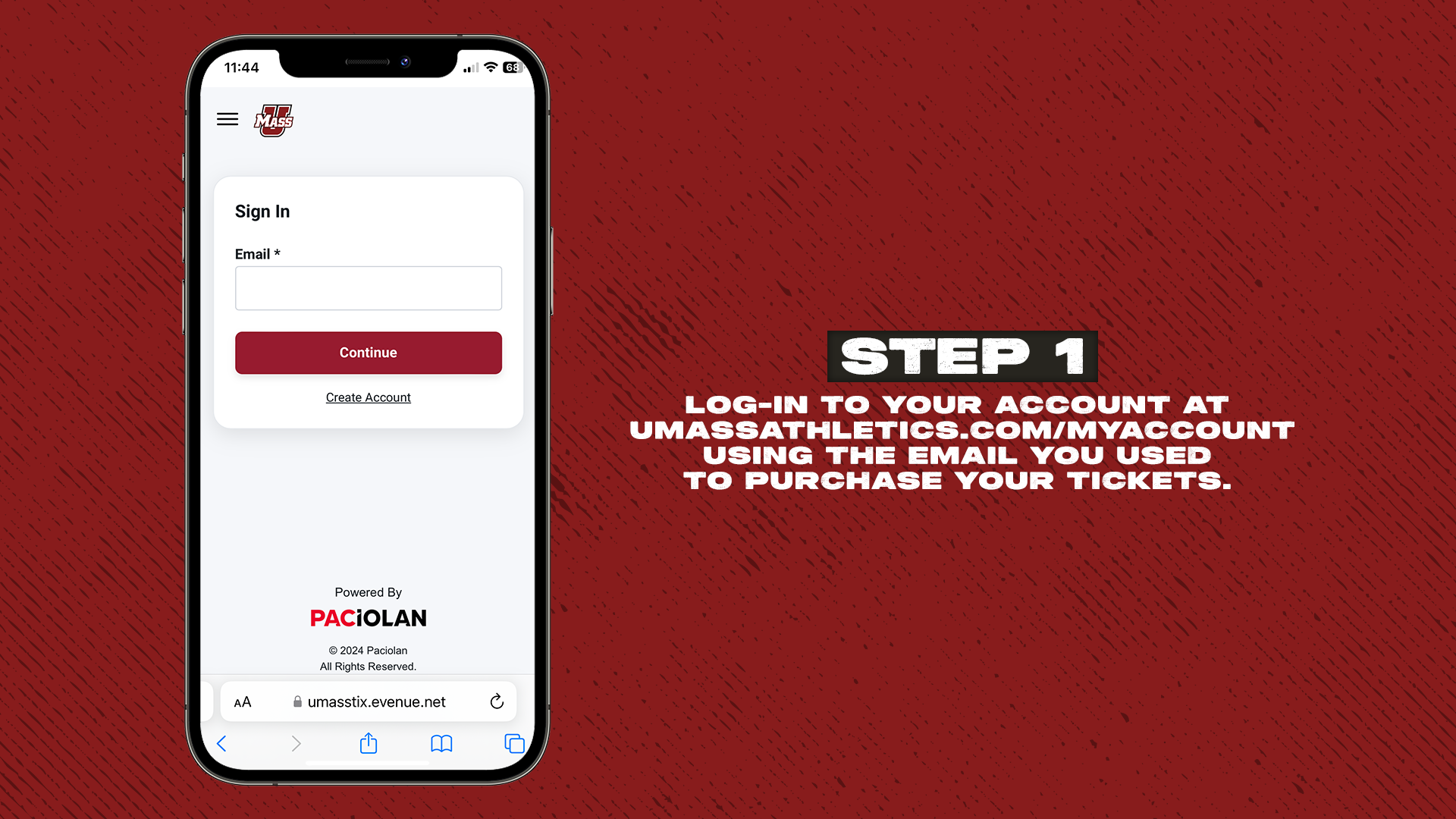
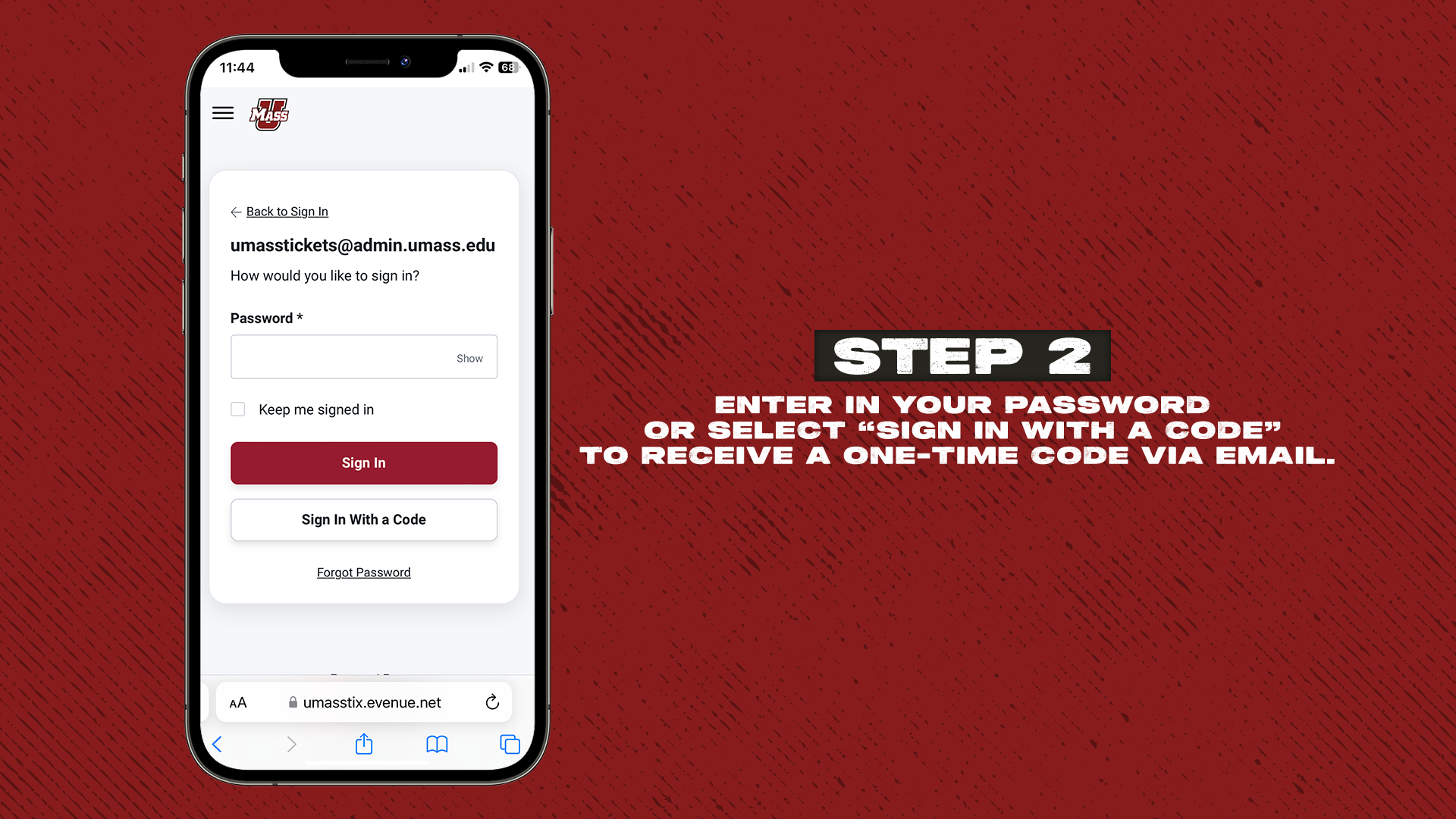
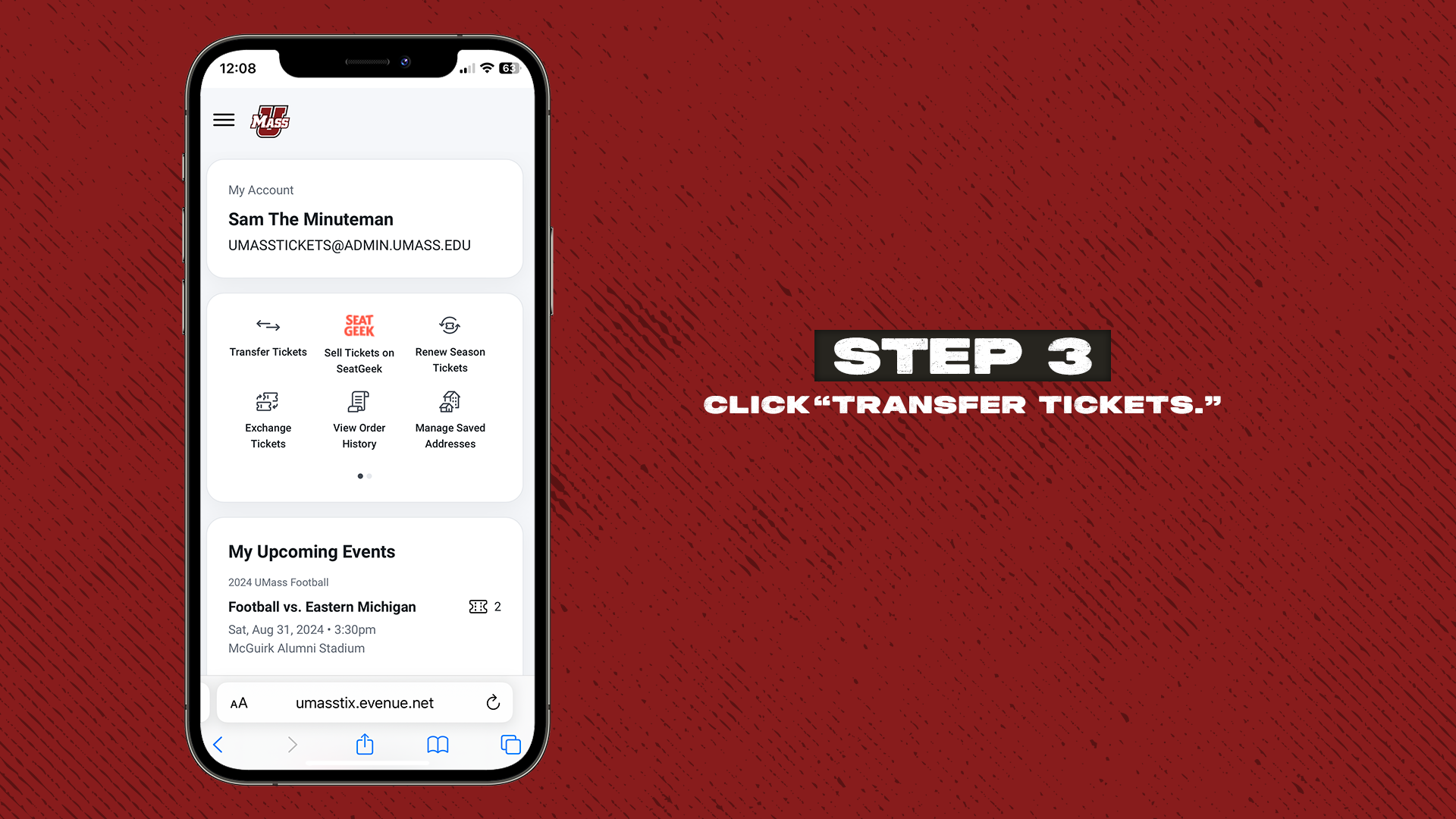
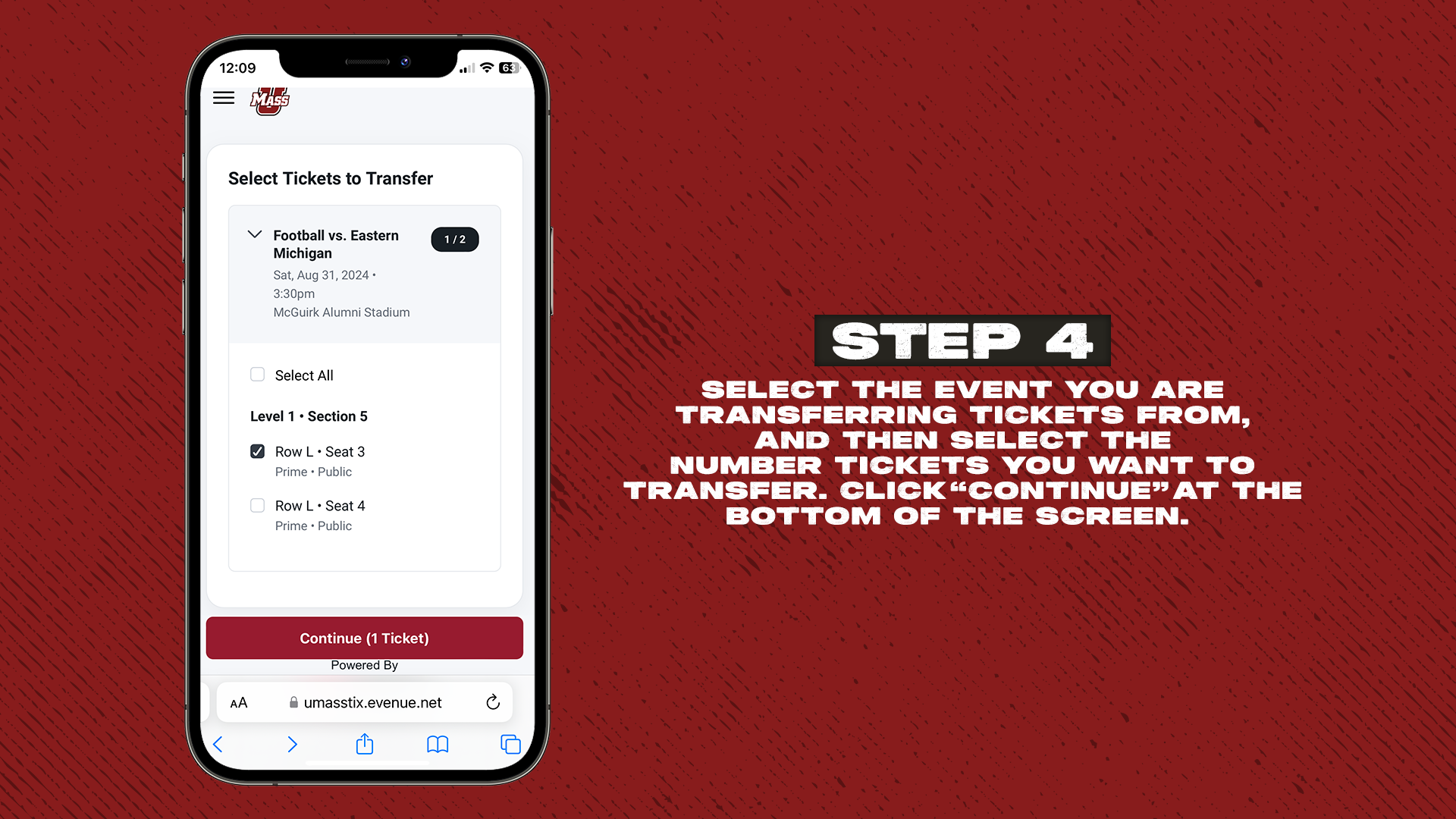
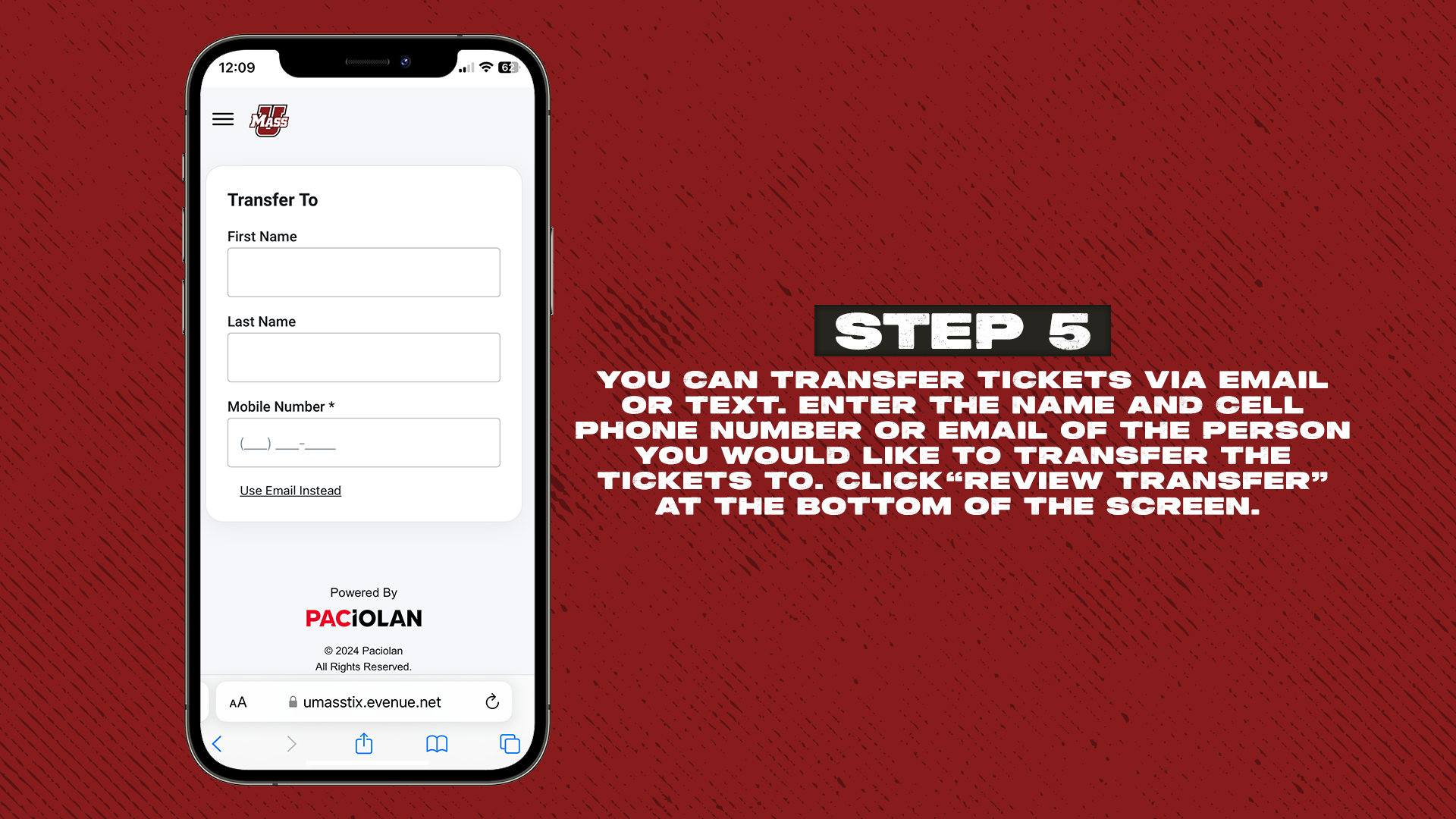
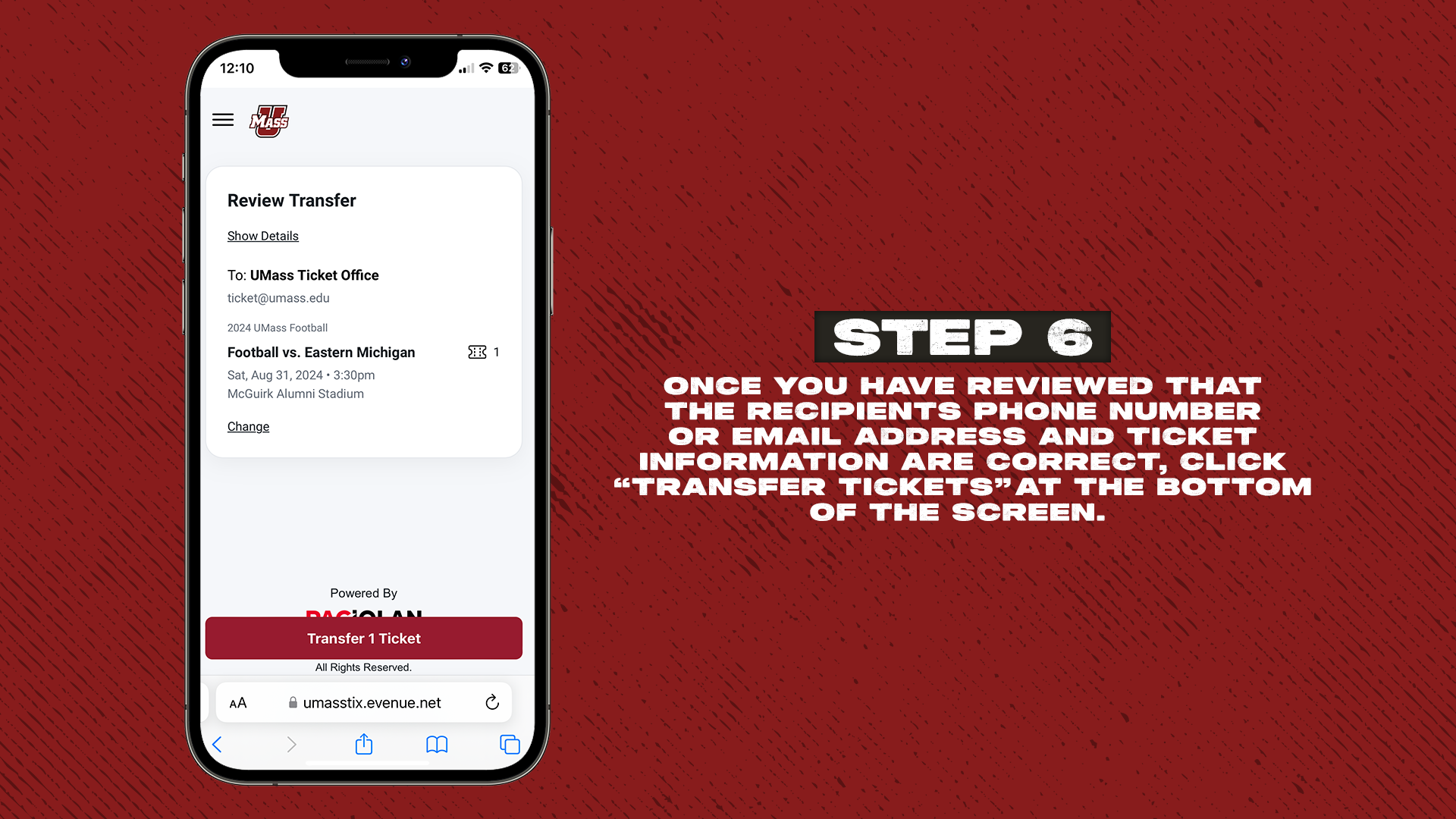
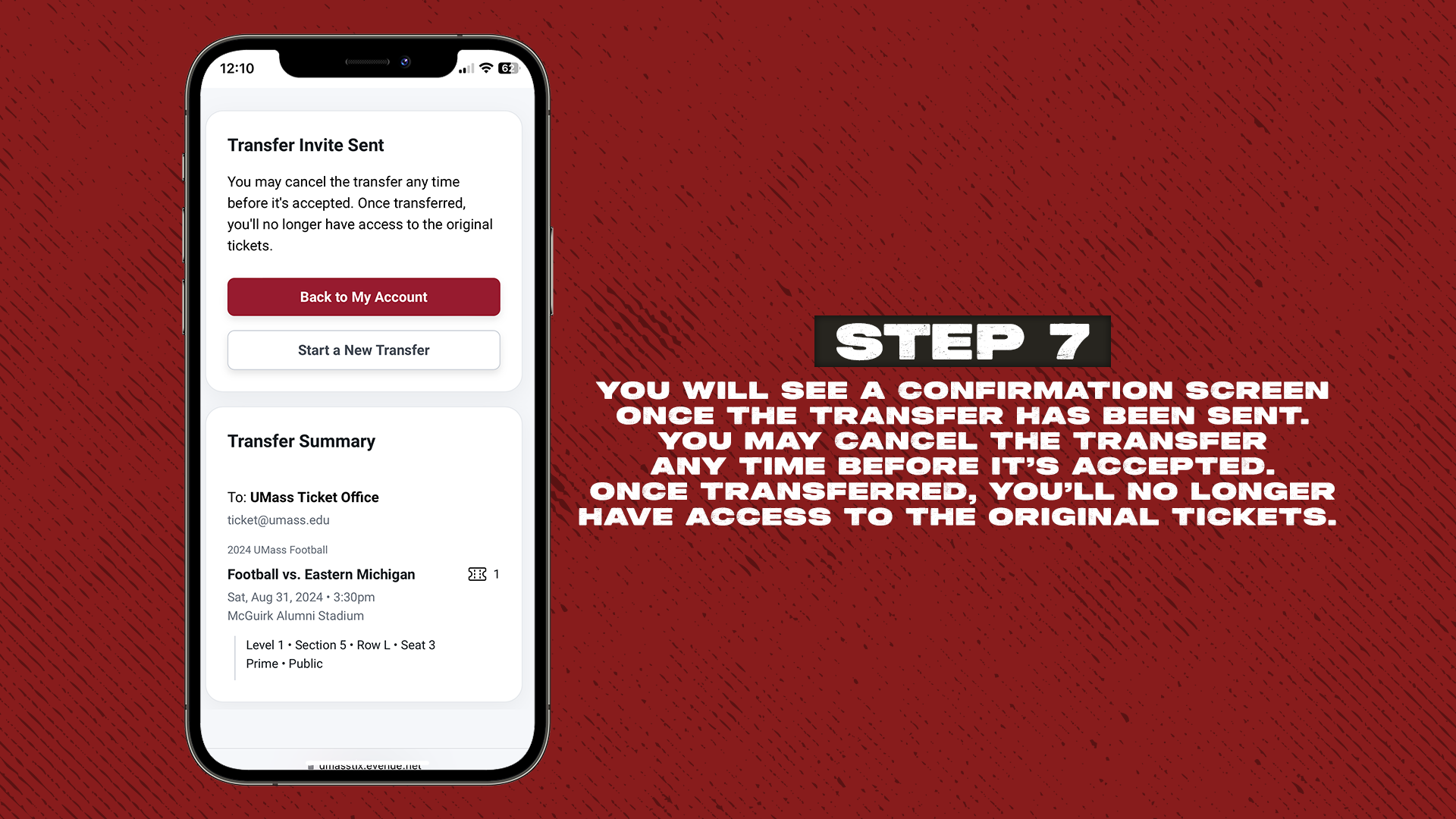
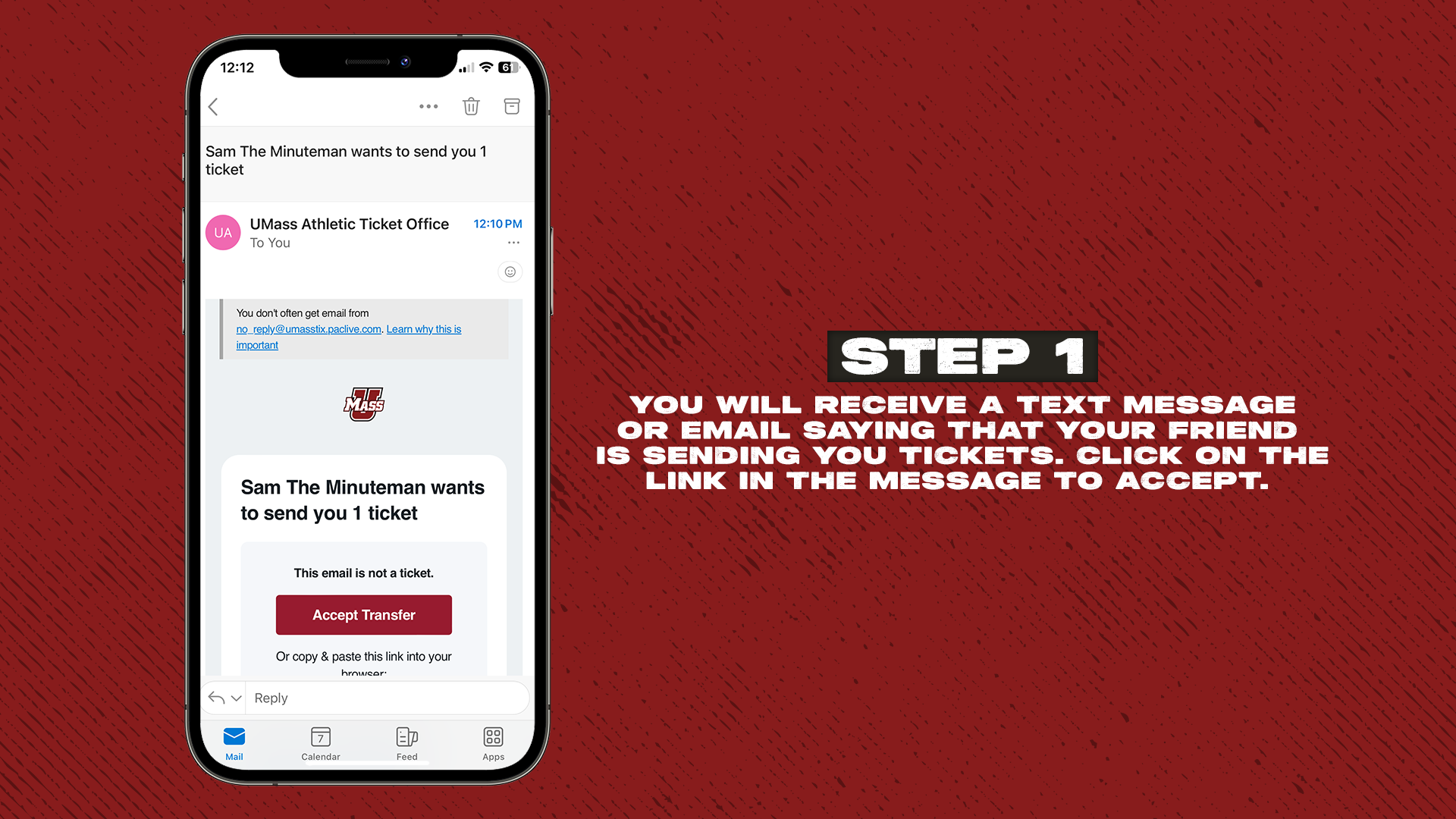
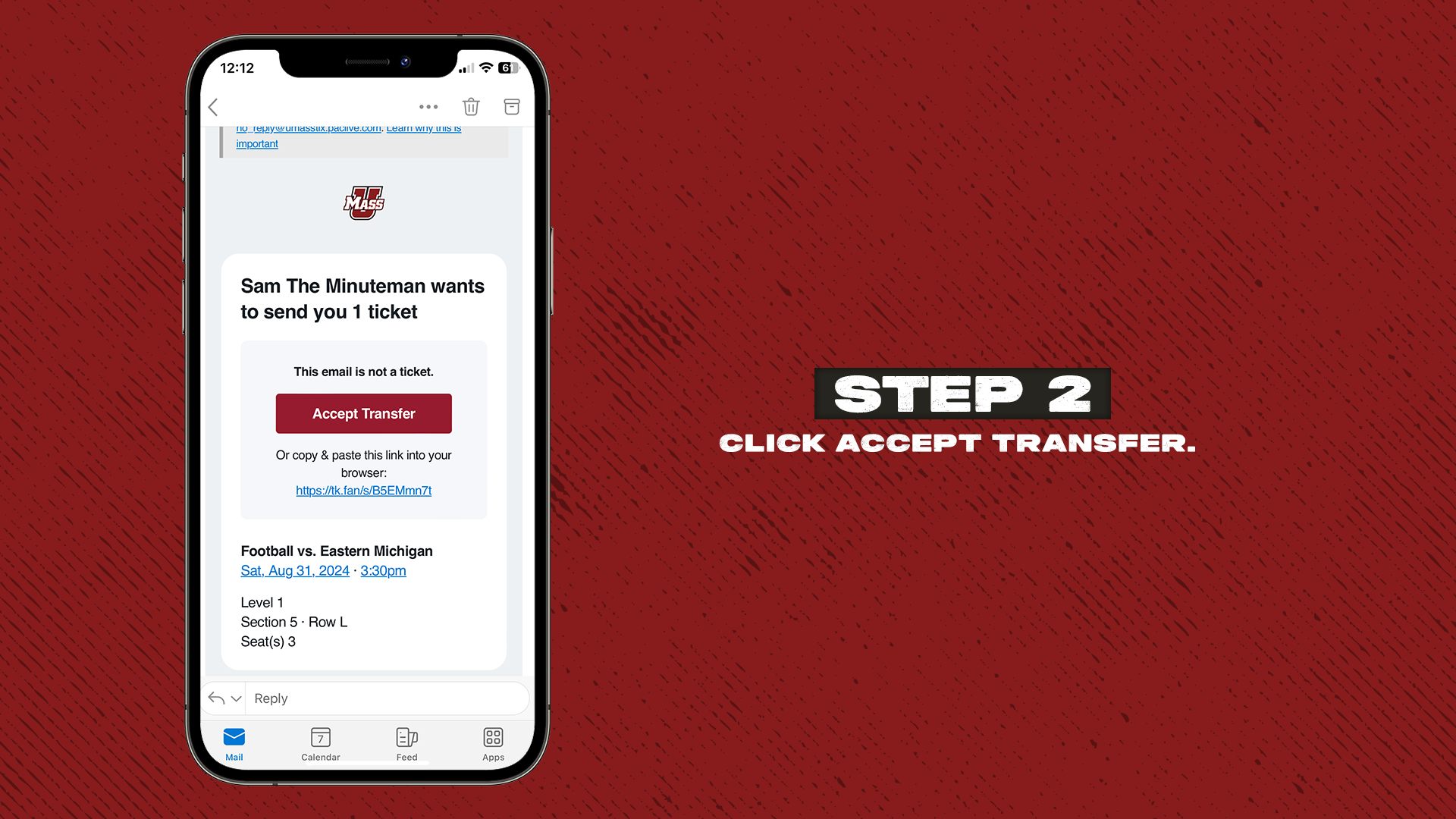
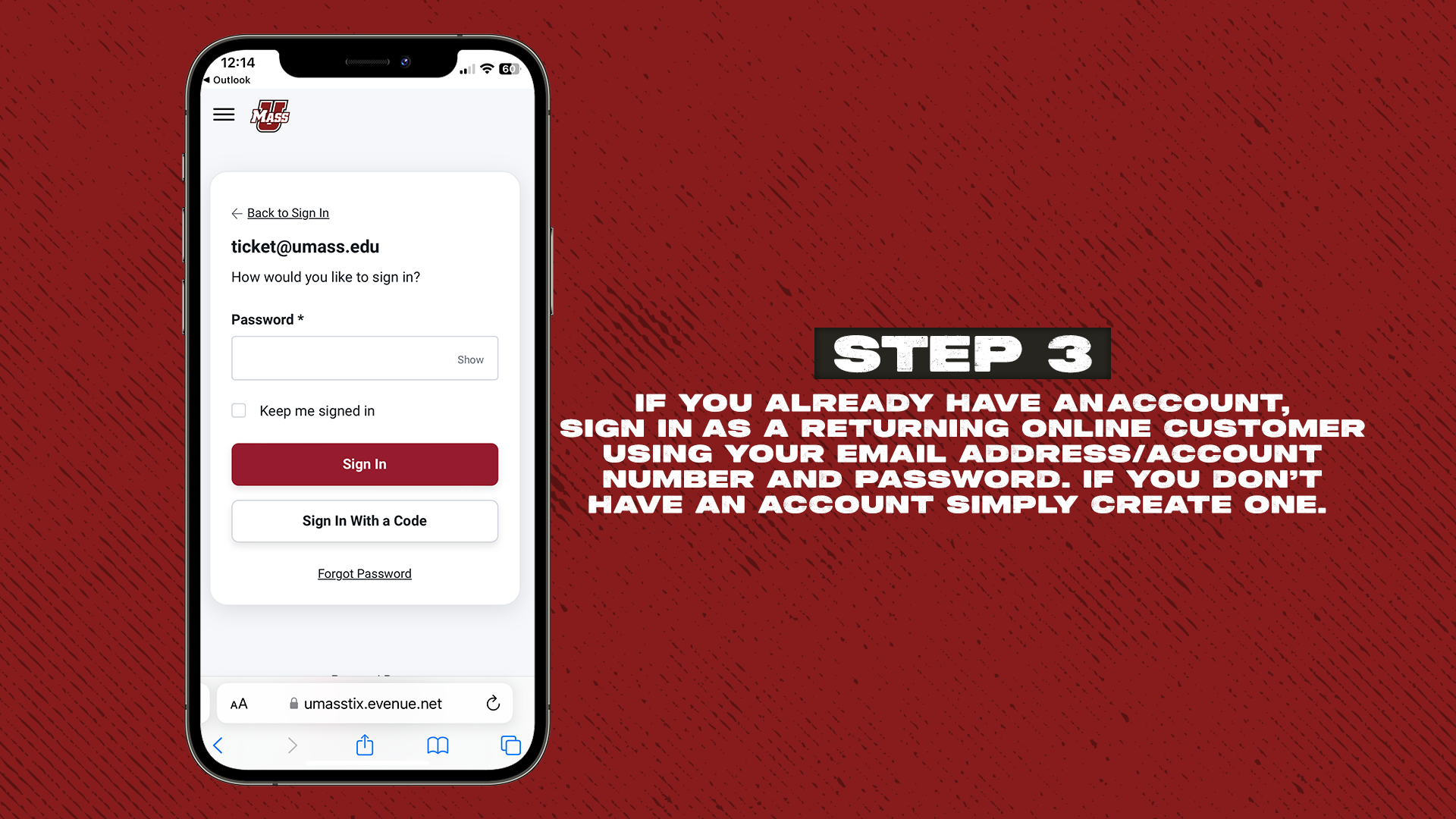
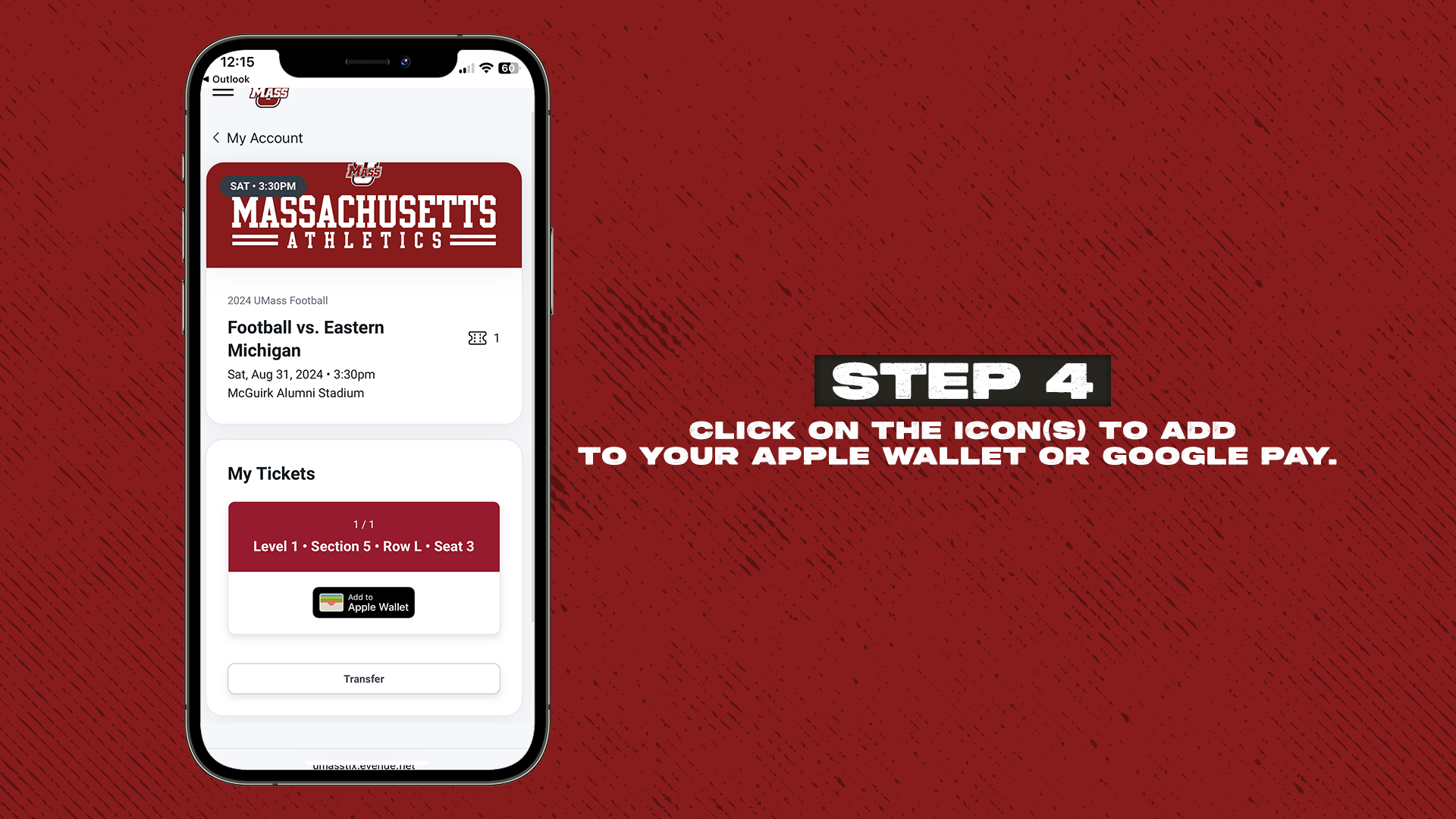
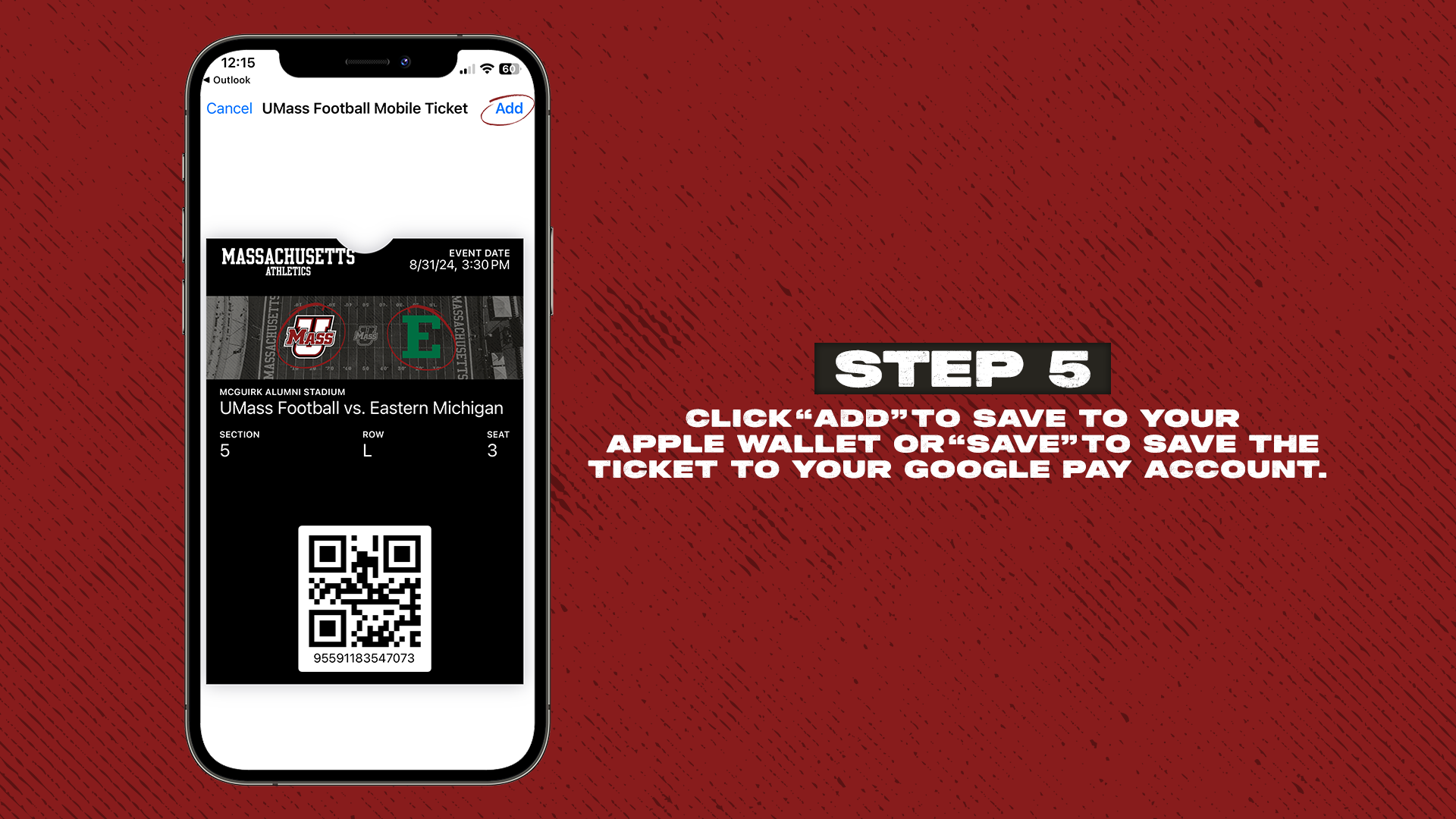
Accept the Transfer
How to Cancel a Ticket Transfer
A ticket transfer can only be canceled before the recipient accepts it (or if they reject it). To cancel:
-
Visit UMassAthletics.com/MyAccount and sign in to your UMass Athletics ticket account.
-
Scroll down to Pending Transfers.
-
Tap the pending transfer you’d like to cancel.
-
Tap Cancel Transfer.
-
You’ll see a confirmation screen and receive an email once canceled.
Screenshots, forwarded emails, or login sharing will not work and may cause tickets to be disabled. Each person entering the venue must have their own UMass Athletics ticket account and accept the transferred ticket. Recipients will be prompted to sign in or create an account during the process, then add the ticket to their Apple Wallet.
Student Access Pass
This pass will grant full-time undergraduate students at UMass admission into all ticketed sporting events. These include: football, hockey, men's basketball, women's basketball, and men’s lacrosse. The pass remains in the digital wallet and may be scanned at the Student Entrance. Visit umassathletics.com/studenttickets for more information.

Redeeming Your Hockey Flex Voucher
Your UMass hockey flex ticket vouchers are ready to be redeemed for valid game tickets in your online account.
Using Your Mobile Device Follow the Instructions Below:
- Log into your UMass Athletics Ticket Account at umassathletics.com/myaccount using the email used to purchase.
- Tap “Exchange Tickets”
- Tap “2026-27 Ice Hockey Flex Voucher”
- Select a voucher for every ticket that you would like to redeem.
- Select your game
- Select your tickets
- Select Mobile Delivery
- Finalize the exchange and get your tickets!
Vouchers must be redeemed 24 hours prior to the game that you would like to attend.